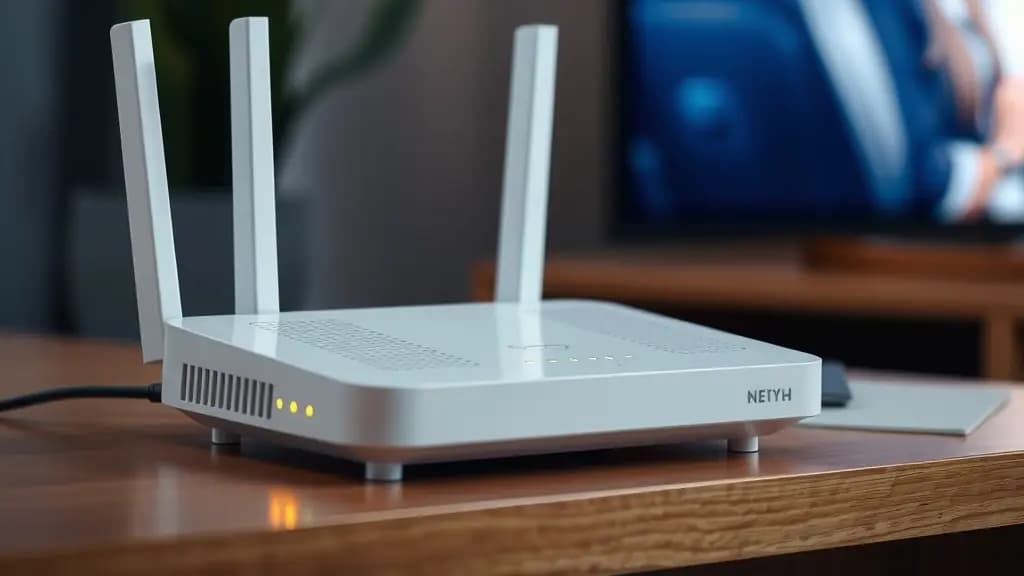
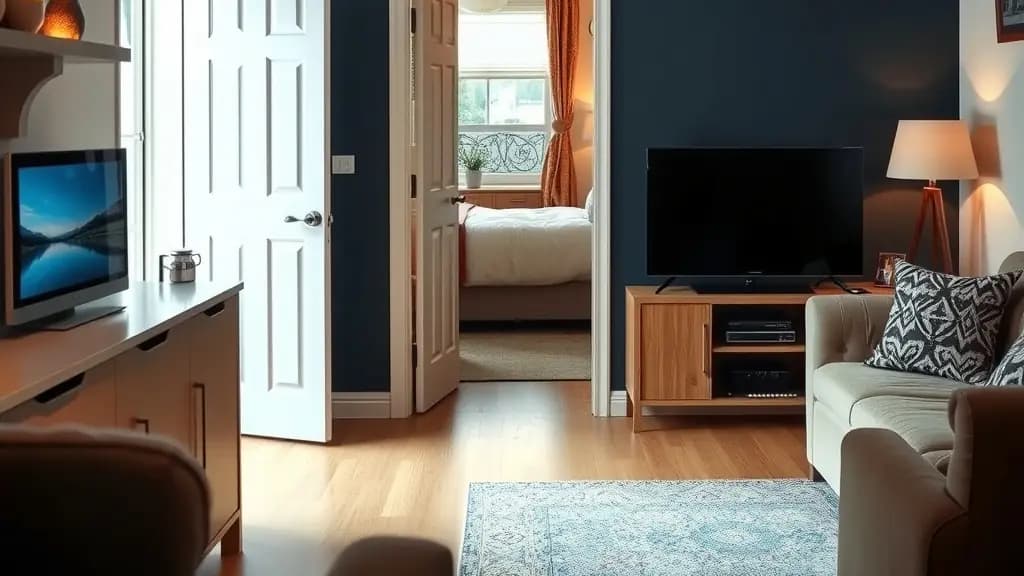
When IPTV buffers, most people blame their broadband provider. More often, the problem is the last few metres: the link between the router and the TV. A fast fibre line is no help if the Wi-Fi signal has to pass through two walls and a floor to reach the living room.
There are four main ways to connect a TV or streaming device: a network cable, Wi-Fi, powerline adapters and mesh Wi-Fi. This guide explains how each works, where it fits best in UK homes, and how to tell whether you have chosen well.
Why the home connection matters
Your broadband line brings data to the router. From there, it still has to reach the TV. Along the way it can be slowed by:
- distance from the router
- thick walls, floors and metal objects
- neighbouring Wi-Fi networks on the same channel
- other devices in your home using the connection at the same time
A live TV stream needs a steady flow of data. Short drops that you would never notice while browsing can cause a pause in the picture. That is why the way you connect the TV matters so much for IPTV.
Option 1: Ethernet (a network cable)
A network cable runs from a spare port on your router to the network port on your TV, streaming box or adapter.
Strengths
- The steadiest connection you can get.
- Full speed with no interference from neighbours.
- Cables are inexpensive.
Weaknesses
- Running a cable between rooms can be untidy or impractical.
- Many streaming sticks have no network port, so you need a small adapter.
Best for
A TV in the same room as the router, or any home where a cable can be run along a skirting board. If you watch a lot of live sport, it is worth the effort for the main TV.
Option 2: Wi-Fi from the router
Most TVs and streaming sticks connect by Wi-Fi by default, using the router's own wireless signal.
Strengths
- Nothing to install.
- Fine for TVs close to the router.
Weaknesses
- Speed falls with distance and walls.
- Crowded in flats and terraces, where many neighbours' networks overlap.
- Shared with every other wireless device in the home.
Getting the most from it
- Connect the TV to the router's 5 GHz band where possible. It is faster and less crowded than 2.4 GHz, though it reaches less far.
- Keep the router in the open, off the floor and out of cupboards.
- Restart the router occasionally and keep its software up to date.
- Newer routers and devices supporting Wi-Fi 6 or later handle several streams at once better than older ones.
Best for
TVs in the same room as the router, or one room away in a small flat.
Option 3: powerline adapters
Powerline adapters come in pairs. One plugs into a wall socket near the router and connects to it with a short cable. The other plugs into a socket near the TV and gives you a network port. The data travels through your home's electrical wiring.
Strengths
- Gives a wired-style connection in a room far from the router, without running cables.
- Easy to set up: plug in and press a pairing button.
Weaknesses
- Performance depends on your wiring. It works well in many homes and poorly in some, particularly where sockets are on different circuits.
- Adapters should be plugged directly into the wall, not into an extension lead, which can weaken the signal.
Best for
Houses where the TV is a floor or two from the router, especially older terraces with thick internal walls. If you are unsure, buy from a retailer that allows returns and test it.
Option 4: mesh Wi-Fi
A mesh system is a set of two or more units placed around the home. They connect to each other and create one Wi-Fi network with a strong signal everywhere. Many units also have network ports, so a TV can be cabled to the nearest unit.
Strengths
- Strong Wi-Fi in every room, including upstairs.
- One network name throughout the house, so devices switch between units automatically.
- Improves Wi-Fi for every device in the home, including the TV.
Weaknesses
- Costs more than powerline adapters.
- Units need to be placed sensibly, roughly halfway between the router and the weak spot.
Best for
Larger homes, homes over several floors, and households with many devices streaming at once.
Which option suits your home?
| Your home | Best first choice | Alternative |
|---|---|---|
| Studio or small flat, TV near the router | Ethernet or 5 GHz Wi-Fi | |
| Flat with TV in another room | Ethernet along the skirting | Powerline |
| Terraced house, TV downstairs at the back | Powerline | Mesh |
| House over two or three floors | Mesh | Powerline to each TV |
| Several TVs streaming at once | Mesh with cables to the main TVs | Powerline for the main TV |
For tall terraced houses, many homes, and multi-floor homes, mesh is usually the most reliable all-round fix. If you only care about one TV, powerline is often the cheapest way to solve it. Our guide to multiroom IPTV covers setting up several rooms.
How to test your connection
Measure before and after any change, so you know it has worked.
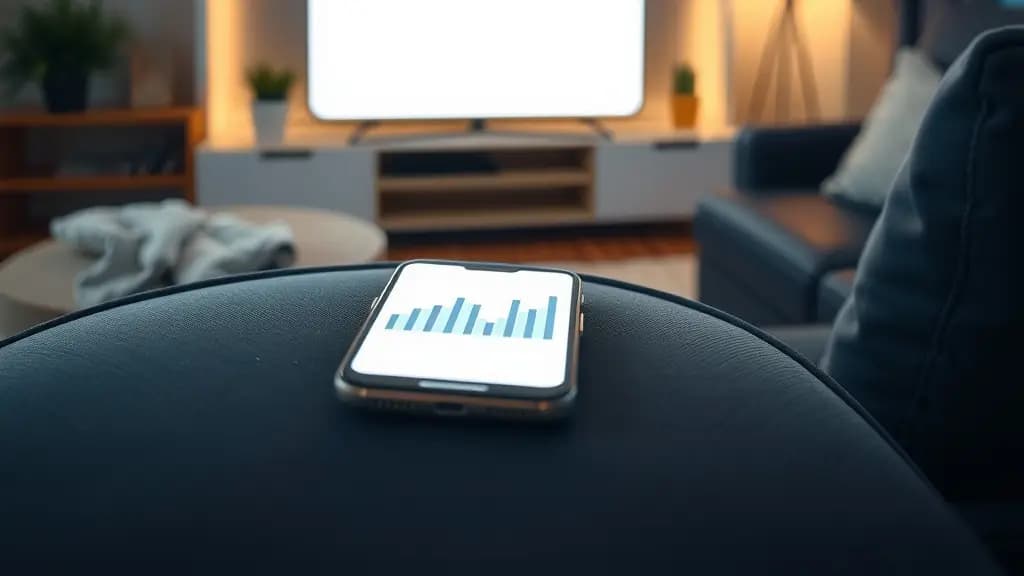
- Test speed at the TV, not at the router. Stand next to the TV with your phone, or use a speed-test app on the streaming device itself.
- Test in the evening. Weekday evenings are when home and neighbourhood networks are busiest.
- Compare with what you need. Allow around 5 Mbps per HD screen and 15 to 25 Mbps per 4K screen, plus spare for other devices. Our broadband speed guide has worked examples.
- Watch for steadiness. A connection that holds 20 Mbps all evening streams better than one that swings between 80 and 3.
If speed at the router is good but poor at the TV, the home connection is the problem and one of the options above will help. If speed is poor even at the router, contact your broadband provider.
Settings that help on any connection
- In the player app, try a lower stream quality or a larger buffer if it offers one.
- On the streaming device, restart it every few days if it has been left on.
- Pause big downloads, game updates and cloud backups while you watch.
- If your router has a priority or QoS setting, give the TV priority.
Our buffering guide walks through these step by step.
Common mistakes to avoid
Hiding the router
Routers are often tucked behind the TV, inside a cupboard or on the floor by the front door, because that is where the line comes in. Every wall and cupboard door weakens the signal. If you can, use a longer cable from the wall socket to put the router somewhere central and open.
Using a Wi-Fi extender on its own
Simple plug-in extenders repeat a weak signal, and often halve the speed in the process. For streaming, a mesh system or a powerline adapter with a network port is usually a better investment.
Plugging powerline adapters into extension leads
Powerline adapters work best plugged straight into a wall socket. Extension leads and surge protectors can block or weaken the signal.
Running the main TV on 2.4 GHz
Many devices connect to the 2.4 GHz band by default because it reaches further. If your router shows two network names, connect the TV to the 5 GHz one. If it shows one name for both, the router chooses automatically, and moving it closer can help it pick the faster band.
Testing at the wrong time
A connection that looks fine at midday can struggle at 9pm. Always test in the evening, when you actually watch.
Frequently asked questions
Is Ethernet really better than Wi-Fi for IPTV?
For steadiness, yes. A cable avoids interference and distance problems entirely. Good Wi-Fi close to the router is often perfectly fine, though.
Do powerline adapters work in flats?
Often, as long as the sockets are on the same electrical installation. Results vary, so buy somewhere that accepts returns.
Is mesh Wi-Fi worth it just for IPTV?
If you have a larger or multi-floor home, mesh improves every device, not only the TV, which is why many households find it worth the cost.
My Fire TV Stick has no network port. Can I still use a cable?
Yes. Ethernet adapters are available for streaming sticks and plug into the stick's power port.
Once your connection is sorted, see our plans and prices, or ask us if you would like help diagnosing a connection problem.