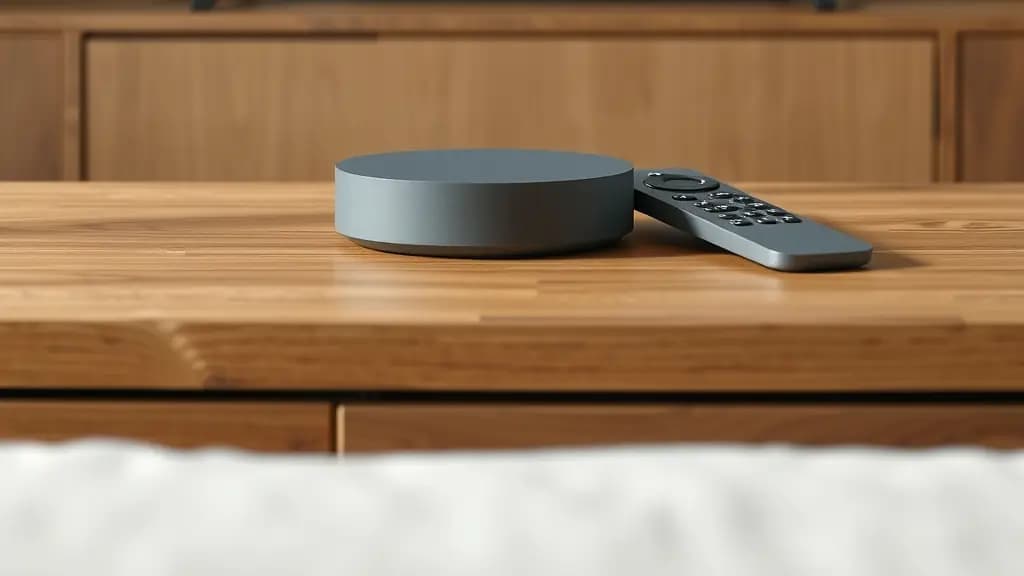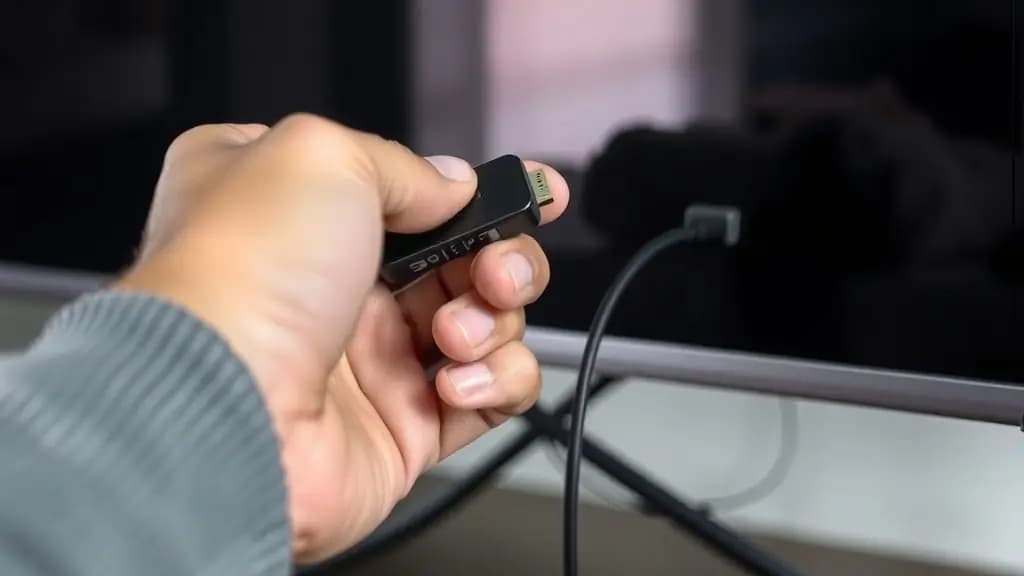
The Amazon Fire TV Stick is one of the most popular streaming devices in UK homes, and it is a good choice for IPTV: it is inexpensive, plugs into any TV with an HDMI port and runs most player apps. This guide takes you from a new stick to watching your first channel.
You will need: a Fire TV Stick or Fire TV Cube connected to your TV and Wi-Fi, your remote, and your IPTV login details.
Step 1: Update your Fire TV
Before installing anything, make sure the Fire TV software is up to date.
- Go to Settings on the Fire TV home screen.
- Choose My Fire TV, then About.
- Select Check for Updates and install any update offered.
Step 2: Find a player app in the Amazon Appstore
Search the Amazon Appstore first, because apps installed from there update automatically.
- On the home screen, select Find, then Search.
- Type the name of a player app, such as IPTV Smarters or IBO Player.
- Choose the app from the results and select Get or Download.
If the player you want is in the Appstore, skip to step 4.
Step 3: Install an app that is not in the Appstore
Some popular players, including TiviMate, are not always listed in the Amazon Appstore. You can install them with Amazon's own Downloader app.
- Search the Appstore for Downloader and install it.
- Go to Settings, My Fire TV. If you do not see Developer Options, open About and press the select button on your device name seven times to turn them on.
- Open Developer Options, then Install unknown apps, and switch on Downloader.
- Open Downloader and enter the download address from the player developer's official website.
- When the download finishes, select Install, then delete the installation file when asked to free up space.
Only download apps from the developer's own website or an official store. Avoid links shared in forums or messages, which can contain malware.
Step 4: Sign in with your IPTV login
Open the player app and choose how to add your subscription:
- Xtream Codes: enter the server address exactly as you received it, including
http://and any port number, then your username and password. Most apps call this "Xtream Codes API" or "Login with Xtream Codes". - M3U: paste the full playlist link. It is easier to send it to yourself and type it on a phone using the Fire TV mobile app as a keyboard.
- MAC address: apps such as IBO Player show a MAC address and device key on screen. Send both to your provider to activate.
The app then downloads your channel list and programme guide, which can take a minute the first time.
Step 5: Get a smoother picture on Fire TV
- Use a wired connection. An Ethernet adapter for Fire TV gives a steadier stream than Wi-Fi, especially in rooms far from the router.
- Use the power adapter that came with the stick. Powering it from the TV's USB port can cause restarts and stutter.
- Clear the app cache if it slows down: Settings, Applications, Manage Installed Applications, choose the app, then Clear cache.
- Close apps you are not using. Fire TV Sticks have limited memory, and background apps can affect playback.
Common Fire TV problems
The app will not install
Check that Install unknown apps is switched on for Downloader, and that you have enough storage. Settings, My Fire TV, About, Storage shows what is free.
The picture stutters only on Fire TV
Try lowering the picture quality in the player app, increasing its buffer size if it has that setting, or moving to a wired connection. Our buffering guide has more fixes.
The login is rejected
Retype it carefully. Most rejected logins come from a mistyped server address or a space at the end of the password. See fixing IPTV login and programme guide errors.